

Your website’s loading speed can make or break your business. Studies show most visitors leave if a site takes more than 3 seconds to load, and search engines like Google use page speed as a ranking factor. For small business owners, a slow WordPress site means lost customers, reduced search visibility, and decreased revenue.
The good news? You don’t need to be a tech expert to dramatically improve your WordPress site’s performance. This comprehensive guide will walk you through proven strategies to optimise your site speed, from simple plugin installations to hosting upgrades that deliver real results.
Why WordPress Speed Matters More Than Ever in 2026
Website speed isn’t just about user experience anymore, it’s a business imperative. Here’s why speed optimisation should be your top priority:
Search Engine Rankings: Google’s Core Web Vitals update means slow sites get penalised in search results. Faster sites rank higher and attract more organic traffic.
User Experience: Modern consumers expect instant gratification. A one-second delay can reduce conversions by 7%, while a fast site keeps visitors engaged and more likely to purchase.
Mobile Performance: With over 60% of web traffic coming from mobile devices, speed optimisation is so important for reaching your mobile audience effectively.
Competitive Advantage: While your competitors struggle with slow sites, an optimised WordPress site gives you a significant edge in capturing and retaining customers.
Understanding WordPress Performance Basics
Before diving into optimisation techniques, it’s helpful to understand what slows down WordPress sites. Your website’s speed depends on several factors working together:
Server Response Time: How quickly your web hosting server responds to visitor requests. Think of this as the engine of your website – a powerful server responds faster.
File Sizes: Large images, videos, and code files take longer to download. It’s like trying to send a large package through the mail – bigger packages take more time.
Database Efficiency: WordPress stores your content in a database. Over time, this database can become cluttered with unnecessary data, slowing down information retrieval.
Third-Party Resources: External scripts, fonts, and widgets from other services can create bottlenecks if they load slowly.
The Power of Caching: Your Site’s Speed Multiplier
Think of caching like a fast-food drive-thru – quick, efficient, and ready to serve pages instantly. Instead of preparing each page from scratch every time someone visits, caching stores ready-made versions of your pages for instant delivery.
How Caching Works
When a visitor first loads your page, WordPress processes PHP code, queries the database, and assembles the final HTML page. With caching enabled, this processed page gets stored as a static HTML file. When the next visitor arrives, they receive the pre-built page instantly, no processing required.
Essential Caching Solutions
Page Caching Plugins: WP Rocket, W3 Total Cache, and WP Super Cache are popular choices that create static versions of your pages. WP Rocket offers the most user-friendly setup with excellent results.
Browser Caching: This tells visitors’ browsers to store certain files locally, so they don’t need to download them again on return visits. Most caching plugins enable this automatically.
Object Caching: For more advanced users, object caching stores database query results, reducing the need to repeatedly fetch the same information.
Pro Tip: To avoid the mistake of ‘over-optimisation’, start by installing just one reliable caching plugin (like WP Rocket) and one image compression plugin (like Smush). You can always add more tools later if needed.
Setting Up Caching
Most quality caching plugins work with minimal configuration. After installation, enable basic page caching and browser caching. Advanced features like minification (removing unnecessary code spaces) and GZIP compression (shrinking file sizes) can provide additional speed gains.
Image Optimisation: Reducing Your Biggest Speed Killers
Images often account for 60-70% of a webpage’s total size. Optimising images can dramatically improve loading times without sacrificing visual quality.
Image Format Selection
WebP Format: This modern image format (.webp) provides 25-35% smaller file sizes compared to JPEG while maintaining the same quality. Most modern browsers support WebP, and plugins can automatically convert images.
JPEG vs PNG: Use JPEG (.jpeg or .jpg) for photographs and complex images with many colors. PNG (.png) works better for simple graphics, logos, and images requiring transparency.
Image Compression Techniques
Lossless Compression: Reduces file size without quality loss by removing unnecessary metadata. Tools like TinyPNG excel at this.
Lossy Compression: Slightly reduces image quality for significant size savings. Most visitors won’t notice the difference when done properly.
Automated Image Optimisation
Plugins like Smush, ShortPixel, and Imagify automatically compress images as you upload them. They can also optimise existing images in your media library with one click. These tools typically reduce image sizes by 50-80% without visible quality loss.
Pro Tip: if possible, try to avoid image optimisation plugins altogether – this however entails downloading all your existing images on your website, optimising and re-loading the images.
The Ideal Image Size
The ideal image size for any website depends on its placement and purpose, but generally, go for a balance between image quality and file size to ensure fast loading times and a good user experience. Aim for a maximum of 200KB for most images and consider using larger, but still optimised, sizes for hero images or background images.
Responsive Images and Lazy Loading
Responsive Images: WordPress automatically creates multiple image sizes for different devices. This ensures mobile users don’t download massive desktop-sized images.
Lazy Loading: Images load only when visitors scroll to them, dramatically improving initial page load times. WordPress includes native lazy loading, and plugins can enhance this functionality.
Database Cleaning: Decluttering for Speed
Your WordPress database accumulates digital clutter over time – spam comments, post revisions, unused plugins data, and expired transients. Regular database maintenance keeps your site running smoothly.
Common Database Bloat
Post Revisions: WordPress saves every edit as a separate revision. While useful for content recovery, hundreds of revisions slow down database queries.
Spam Comments: Unapproved and spam comments accumulate quickly, creating unnecessary database overhead.
Expired Transients: These temporary data storage files should delete automatically but sometimes linger, consuming database space.
Unused Plugin Data: Deactivated plugins often leave database tables and options behind.
Database Optimisation Tools
WP-Optimize: This plugin safely removes database clutter while preserving important data. It can delete spam comments, clean post revisions, and remove expired transients automatically.
Advanced Database Cleaner: Offers more granular control over database cleaning, allowing you to remove specific plugin data and optimise database tables.
Best Practices for Database Maintenance
Limit post revisions to 3-5 per post by adding code to your wp-config.php file or using a plugin. Schedule automatic database cleanups weekly or monthly. Always backup your database before major cleaning operations, plugins like UpdraftPlus make this simple.
Hosting Considerations: The Foundation of Speed
Your hosting provider significantly impacts site speed. Shared hosting might seem economical, but it often becomes a bottleneck as your business grows.
Types of WordPress Hosting
Shared Hosting: Multiple websites share server resources. While affordable, slow neighbours can impact your site’s performance. Suitable for new or existing sites with low traffic.
Managed WordPress Hosting: Specialised hosting optimised specifically for WordPress. Providers like WP Engine, Kinsta, and SiteGround offer enhanced performance, security, and support.
VPS (Virtual Private Server): Dedicated server resources without the full cost of a dedicated server. Offers more control and consistent performance than shared hosting.
Dedicated Hosting: An entire server dedicated to your website. Provides maximum performance but requires technical expertise or managed services.
Key Hosting Features for Speed
SSD Storage: Solid State Drives access data much faster than traditional hard drives. Ensure your host uses SSD storage for optimal performance.
Content Delivery Network (CDN): Services like Cloudflare distribute your site’s files across global servers, delivering content from locations closest to your visitors.
PHP 8.0+: Newer PHP versions provide significant performance improvements. Ensure your host supports and uses current PHP versions.
Server Location: Choose hosting with servers geographically close to your primary audience for reduced latency.
For a growing business, managed WordPress hosting is most often the sweet spot. It gives you the power and speed you need without the technical headaches of managing a server yourself.
When to Upgrade Hosting
Consider upgrading if your site consistently loads slowly despite optimisation efforts, you experience frequent downtime, or your traffic has grown significantly. Quality managed WordPress hosting often pays for itself through improved conversions and search rankings.
Advanced Optimisation Techniques
Once you’ve implemented basic optimisations, these advanced techniques can squeeze out additional performance gains.
Code Optimisation
Minification: Removes unnecessary spaces, comments, and characters from CSS, JavaScript, and HTML files. Plugins like Autoptimize handle this automatically.
CSS and JavaScript Optimisation: Combining multiple files reduces HTTP requests. However, be cautious – improper optimisation can break site functionality.
Plugin Management
Plugin Audits: Regularly review installed plugins. Deactivate and delete unused plugins, as even inactive plugins can slow down your admin area.
Plugin Alternatives: Sometimes multiple plugins can be replaced by a single, more efficient solution. For example, an all-in-one SEO plugin might replace several specialised plugins.
Pro Tip: Always keep one “spare” Theme available in case the theme you’re using crashes, then delete all other themes not used.
Third-Party Service Optimisation
External Scripts: Limit external resources like social media widgets, chat systems, and analytics tools. Each external request adds loading time.
Font Optimisation: Use system fonts when possible, or limit custom fonts to 2-3 font families with only necessary weights and styles. Ideally, you should load your fonts as WOFF2 files directly on the backend of your WordPress website before building starts.
Measuring and Monitoring Performance
Optimisation isn’t a one-time task, it requires ongoing monitoring and adjustment. Before you start, use a tool like Google PageSpeed Insights to get a ‘before’ score. After you’ve completed Phase 1 (below), run the test again to see the immediate improvement. This will help you track your progress.
Essential Speed Testing Tools
Google PageSpeed Insights: Provides performance scores and specific recommendations for improvement. Focus on both mobile and desktop scores.
GTmetrix: Offers detailed performance analysis with waterfall charts showing exactly where time is spent loading your page.
Pingdom: Provides easy-to-understand speed tests with global testing locations
Note: Both GTmetrix and Pingdom are free unless you need to test your site from a specific location.
Key Metrics to Monitor
Largest Contentful Paint (LCP): Measures when the main content loads. Aim for under 2.5 seconds.
First Input Delay (FID): Measures interactivity. Should be under 100 milliseconds.
Cumulative Layout Shift (CLS): Measures visual stability. Lower scores indicate less jarring layout changes.
Time to First Byte (TTFB): This is the technical way of measuring your server response time, which you read about earlier. It tells you how long it takes for your server to start sending data. Aim for under 200 milliseconds.
Setting Up Monitoring
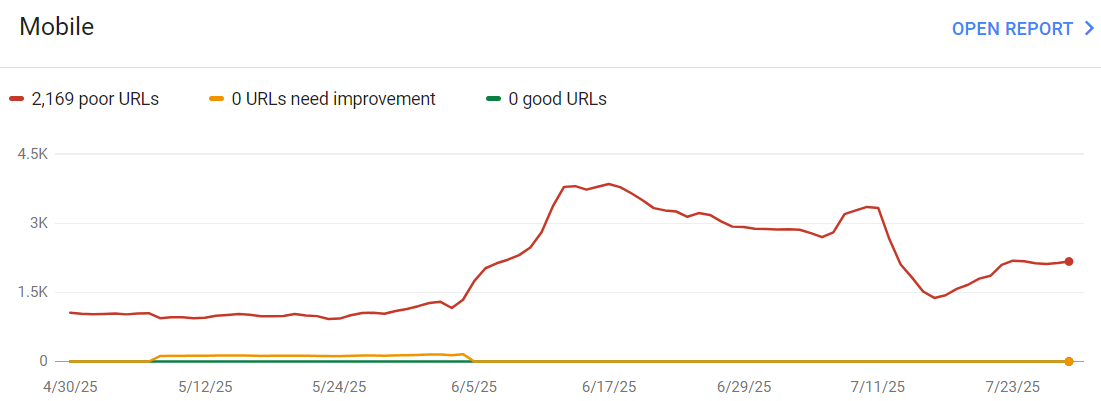
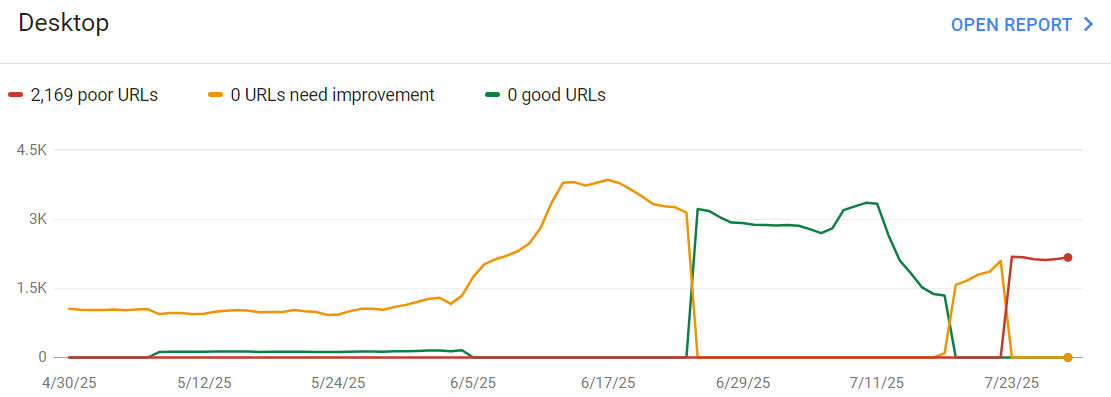
Use tools like Google Search Console to monitor Core Web Vitals over time. Regular monthly speed tests help catch issues before they impact user experience.
Common Mistakes That Can Slow Your Site Down
Many business owners inadvertently slow down their sites while trying to improve them.
Over-Optimisation: Installing multiple caching plugins or aggressive optimisation settings can break functionality. Start with basic optimisations and gradually add more.
Ignoring Mobile Performance: Desktop speeds don’t guarantee mobile performance. Always test on mobile devices and prioritise mobile optimisation.
Plugin Overload: More plugins don’t always mean better functionality. Each plugin adds overhead – choose quality over quantity.
Neglecting Updates: Outdated WordPress core, themes, and plugins can contain performance issues and security vulnerabilities.
Creating Your Speed Optimisation Action Plan
Implementing all optimisations at once can overwhelm your site and make troubleshooting difficult. Follow this prioritised approach:
Phase 1:
Foundation (Week 1) – these are the quickest and most impactful changes that will give you the biggest speed boost right away:
1. Install a quality caching plugin
2. Optimise existing images with a compression plugin
3. Enable lazy loading
4. Remove unused plugins and themes
Phase 2:
Enhancement (Week 2-3) – now you’ll tackle the deeper-level optimisations to further improve your site’s efficiency and responsiveness.
1. Clean your database
2. Implement a CDN (like CloudFlare) if necessary
3. Optimise your theme and remove unnecessary features
4. Audit and optimise plugin usage
Phase 3:
Advanced (Week 4+)
1. Consider hosting upgrades if needed
2. Implement advanced caching strategies
3. Optimise code and third-party resources
4. Monitor your website’s performance
The Business Impact of Speed Optimisation
Investing time and resources in WordPress speed optimisation delivers measurable business results. Faster sites see improved search engine rankings, increased conversion rates, and better user engagement. For small businesses, these improvements often translate directly to increased revenue and customer satisfaction.
Speed optimisation isn’t just a technical exercise, it’s a strategic business investment that continues paying dividends through improved user experience, better search visibility, and competitive advantage in your market.
Remember, website optimisation is an ongoing process, not a destination. Regular monitoring, updates, and adjustments ensure your WordPress site continues performing at its best as your business grows and evolves.
By following this comprehensive guide, you can transform your WordPress site from a speed liability into a performance asset that supports your business goals and delights your customers with fast, responsive experiences.
Need help implementing these changes? I offer WordPress optimisation services tailored to small business websites.