
Keeping your WordPress website maintained isn’t just about avoiding downtime, it’s about ensuring security, optimal performance, a superior user experience, and long-term growth. Whether you run a service-based business or an eCommerce store, regular maintenance keeps your site healthy and competitive in search results.
This comprehensive guide delivers actionable WordPress maintenance strategies specifically designed for small and medium-sized businesses. You’ll learn exactly what to do, when to do it, and why each task matters for your bottom line.
Why WordPress Maintenance Matters More Than Ever in 2026
Your website is (or should be) a revenue-generating asset that requires protection. Poor maintenance creates cascading problems that directly impact your business success:
Security Vulnerabilities: Outdated software creates entry points for hackers. A compromised website can result in stolen customer data, defaced pages, and complete business disruption.
Performance Degradation: Slow websites frustrate visitors and drive them to competitors. Every second of delay reduces customer satisfaction and conversion rates.
Functionality Failures: Broken features, forms, or checkout processes mean lost sales and damaged customer relationships.
Search Engine Penalties: Search engines favour well-maintained, secure, fast-loading sites. Technical problems reduce your visibility when potential customers search for your services.
Regular maintenance builds customer trust and ensures your website works for your business instead of against it.
Essential WordPress Maintenance Best Practices
Keep WordPress Core, Themes, and Plugins Updated
Software updates deliver important security patches, bug fixes, and performance improvements. Staying current protects your investment and maintains optimal functionality.
Implementation Strategy:
Auto-Updates for Minor Releases: Enable automatic updates for minor WordPress core versions (6.4.1 to 6.4.2). These typically contain only security patches and bug fixes with minimal risk.
Manual Review for Major Updates: Handle major WordPress updates (6.3 to 6.4) and all theme/plugin updates manually:
– Review changelogs to understand what’s changing and identify potential conflicts
– Test updates on a staging environment before applying to your live site
– Pay special attention to sites using Full Site Editing or complex custom functionality
This approach prevents update-related breakages while maintaining security.
Pro Tip: I generally wait for the next minor update following a major update, as this allows time for any fixes or patches needed.
Update Your PHP Version
PHP powers WordPress behind the scenes. Keeping it current dramatically improves your site’s speed and security posture.
Performance Benefits: Modern PHP versions process requests significantly faster, reducing page load times and improving user experience during traffic spikes.
Security Advantages: Older PHP versions eventually lose security support, leaving your site vulnerable to attacks. WordPress performs optimally on PHP 8.3 or higher, with PHP 8.4 being the current stable release.
Update Process:
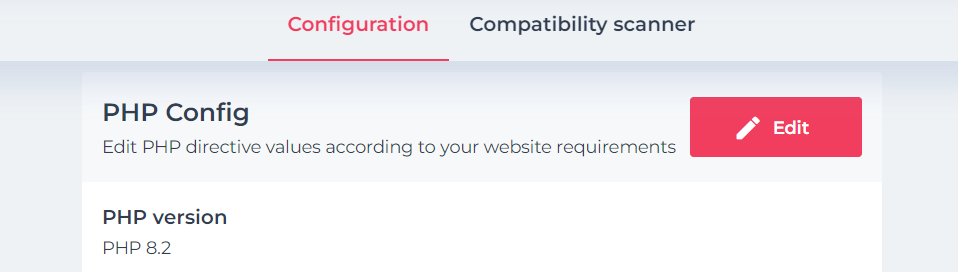
– Check your current PHP version in WordPress Site Health (Tools > Site Health > Info > Server section)
– Verify theme and plugin compatibility before upgrading
– Create a complete backup before making changes
– Contact your hosting provider to upgrade PHP through their control panel
Backup Your Website Regularly
Backups are your business insurance policy, protecting against data loss from failed updates, security breaches, or accidental deletions.
Backup Frequency Guidelines:
– Daily backups: Essential for active sites with frequent content changes, online stores, or membership sites
– Weekly backups: Sufficient for relatively static brochure sites with infrequent updates
Storage Best Practices:
– Use both cloud storage (Google Drive, Dropbox) and local storage for redundancy
– Automate the process with reliable plugins like UpdraftPlus, BlogVault, or Jetpack Backup
– Many managed hosting providers include automated backup solutions
Critical Backup Rules:
– Test backup restoration regularly on a staging site to verify completeness
– Create fresh backups before any major updates or changes
– Store backups in multiple locations to prevent total loss
Scan for Security Threats
WordPress’s popularity makes it a constant target for malicious attacks. Proactive security measures prevent costly breaches and business disruption.
Security Plugin Implementation: Install enterprise-grade security solutions like Wordfence, Sucuri, or iThemes Security. These provide:
– Automated malware scanning to detect threats before they cause damage
– Web Application Firewall (WAF) protection against common attack vectors
– Real-time threat intelligence and blocking
Access Control Hardening:
– Enforce strong, unique passwords for all user accounts
– Implement Two-Factor Authentication (2FA) for administrative access
– Customise your login URL from the default /wp-admin to deter automated attacks
User Management Protocol:
– Conduct monthly user access reviews
– Remove inactive user accounts immediately
– Apply the principle of least privilege, grant only necessary permissions
– Use plugins like User Role Editor for granular permission control
Vulnerability Management: Apply security patches for plugins and themes immediately upon release, especially for critical vulnerabilities.
Monitor Website Performance
Site speed directly impacts user satisfaction and business results. Performance optimisation requires ongoing attention and measurement.
Performance Monitoring Tools: Use Google PageSpeed Insights, GTmetrix, or Pingdom for regular speed assessments. Focus particularly on Core Web Vitals metrics, which affect search rankings and user experience
Speed Optimisation Techniques:
– Caching Implementation: Deploy caching plugins like WP Rocket, W3 Total Cache, or LiteSpeed Cache to serve static page versions
– Image Optimisation: Compress images, use modern formats like WebP, and implement lazy loading for faster page loads
– Content Delivery Network (CDN): Distribute static content globally through services like Cloudflare
– Database Maintenance: Remove accumulated clutter including post revisions, spam comments, and unused plugin data
For comprehensive performance optimisation strategies, please refer to this article where I provide detailed speed optimisation techniques covering advanced caching, hosting considerations, and technical optimisation techniques.
Review and Remove Unused Plugins and Themes
Excess plugins and inactive themes create security vulnerabilities and performance overhead without providing value.
Regular Audit Process:
– Conduct quarterly reviews of all installed plugins and themes
– Deactivate and delete any unused items immediately
– Inactive plugins can still pose security risks and consume resources
Selection Criteria for New Plugins:
– Choose plugins with excellent reviews and regular updates
– Verify active support and developer responsiveness
– Avoid plugins with no recent updates or poor ratings
– Prioritise lightweight solutions over feature-heavy alternatives when possible
Check for Broken Links and 404 Errors
Broken links frustrate users and signal poor site maintenance to search engines, harming your professional reputation.
Link Monitoring Strategy:
– Use a plugin like Broken Link Checker or tools such as Screaming Frog for comprehensive link audits, or install a Chrome Extension like Check Broken Links
– Scan both internal links (within your site) and external links (to other websites)
– Schedule regular automated scans to catch issues quickly
Resolution Approach:
– Fix broken internal links by updating URLs or restoring missing content
– Implement 301 redirects for permanently moved or deleted pages
– Create a helpful custom 404 page that guides visitors to relevant content
Regularly Audit Your Content and SEO
Well-maintained content drives business results by attracting visitors and encouraging conversions.
Content Optimisation Tools: Implement plugins like Rank Math to optimise meta titles, descriptions, and content structure for better search visibility.
Content Freshness Initiative:
– Review older content for accuracy and relevance
– Update statistics, links, and calls-to-action in cornerstone content
– Remove or redirect outdated posts that no longer serve your business goals
Technical Content Tasks:
– Maintain current XML sitemaps and submit them to Google Search Console
– Ensure consistent, accurate business information across all pages
– Optimise images with descriptive alt text for accessibility and search visibility
Additional Essential Maintenance Tasks
Functionality Testing: Regularly test all contact forms, subscription forms, and eCommerce checkout processes. Verify that email notifications are working correctly and reaching intended recipients.
Uptime Monitoring: Implement monitoring services like UptimeRobot to receive immediate notifications when your site goes offline. Quick response to downtime prevents lost business and customer frustration.
Error Log Review: Check server error logs monthly for PHP errors, database issues, or other technical problems. Proactive identification allows you to resolve issues before they impact users.
Accessibility Compliance: Ensure your website serves users with disabilities by implementing proper alt text, keyboard navigation, and clear content structure. Consider accessibility plugins or professional audits for comprehensive compliance.
Analytics Review: Monitor website analytics regularly to understand user behaviour, identify popular content, and discover areas needing improvement. Use this data to guide content and design decisions.
Infrastructure Management: Review your hosting plan annually to ensure it meets your growing business needs. Track domain name and SSL certificate renewal dates to prevent service interruptions
Monthly WordPress Maintenance Checklist
Daily/As Needed
- Monitor site uptime and basic functionality
- Check security alerts and notifications
- Review traffic patterns for anomalies
Weekly
- Apply WordPress core, theme, and plugin updates (test major updates on staging first)
- Run comprehensive security and malware scans
- Test all website forms and email functionality
- Remove spam comments and moderate user-generated content
Monthly
- Create and verify a complete website backup
- Conduct performance analysis and address significant slowdowns
- Clean and optimise the database
- Review content performance and update key pages
- Audit user accounts and permissions
- Scan for broken links and 404 errors
Quarterly
- Perform a comprehensive content and optimisation audit
- Optimise media files and implement new compression techniques
- Analyse website analytics for strategic insights
- Review error logs for recurring technical issues
- Evaluate and update plugins for newer, better alternatives
Annually
- Assess hosting plan adequacy and consider upgrades
- Renew domain names and SSL certificates
- Update PHP version after thorough compatibility testing
- Conduct a complete security audit
- Refresh all cornerstone content and critical business pages
Final Thoughts
WordPress maintenance is fundamental to running a professional business online. Consistent upkeep keeps your website secure, fast and reliable – so it attracts customers, drives conversions and supports growth rather than holding you back.
Think of it as preventive care for a valuable business asset: regular maintenance costs far less than emergency repairs and the lost business that follows a compromised or broken website. The checklist above is built to be run by you or your existing webdev.
A well-maintained site is the foundation, though, not the finish line. Once your site is stable and fast, the real question is whether it’s actually bringing in the right customers, and that’s the job of SEO. If you’d like your website doing more than just ticking over, I can help.